Group Collections

Facebook Group Collections for Cleaner Posting Workflows

Select target groups once, keep them organized as reusable lists, and avoid rebuilding the same group selection every time you prepare a Facebook group posting workflow.

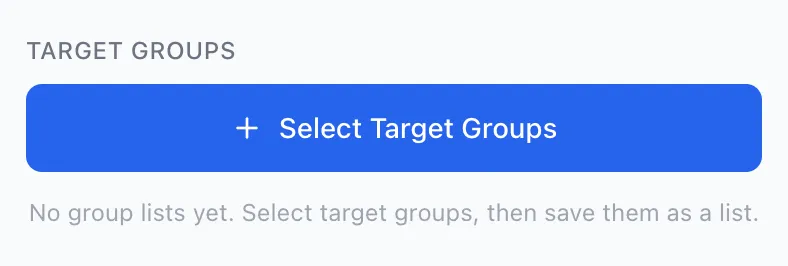
AI Groups Poster target groups section before any group list is saved

What Group Collections do

Group Collections help you organize selected Facebook groups into reusable target lists for repeated posting workflows.

When you post to Facebook groups regularly, the slow part is not only writing the post. It is also remembering which groups belong to which campaign, which groups are relevant, and which order you want to use. Group Collections turn that repeated selection work into a cleaner workflow.

You can select groups from your synced group list, import Facebook group links manually, confirm the selected groups, and save them as a reusable list for future sessions.

1

Select target groups

Choose the groups that fit the current campaign, audience, location, or topic.

2

Save reusable lists

Turn selected groups into a named collection so you do not rebuild the same selection next time.

3

Keep posting order clear

The order you select groups becomes the order used in the workflow, making repeated sessions easier to review.

Select groups from one focused modal

Instead of jumping between tabs and remembering group names manually, you can choose target groups from one organized selection window.

The Select Groups modal keeps group selection separate from post writing. That makes the workflow easier to understand: first choose where the post should go, then review the message and continue.

You can work from your synced groups or switch to the Import Links tab when you already have Facebook group URLs prepared.

AI Groups Poster target groups section before any group list is saved

The Target Groups section opens the selection workflow before any saved list is chosen.

Sync joined Facebook groups

Sync helps build a selectable list of groups you already have access to, so you can organize them inside AI Groups Poster.

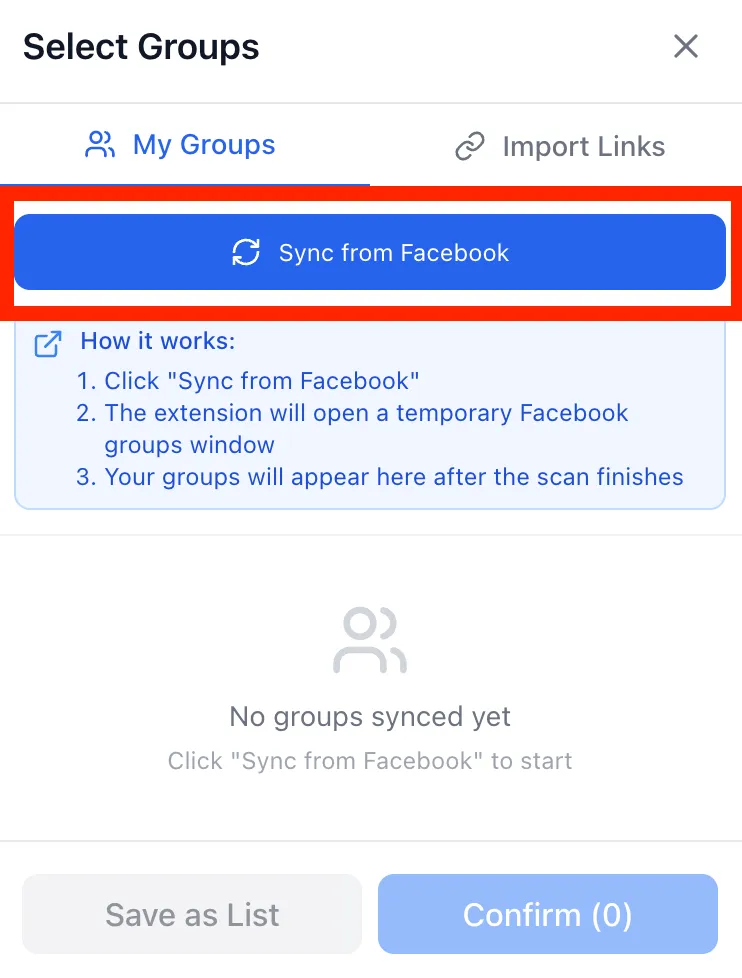
When you click Sync from Facebook, the extension opens a temporary Facebook groups window and scans your available groups. Keep the window visible until the sync finishes. After that, the groups appear in the selection modal.

This is an organization step. It does not join new groups, change group settings, or replace your judgment about where a post belongs.

  • Open a temporary Facebook groups window
  • Scan groups available to your account
  • Show progress while groups are found
  • Return the groups to the selection modal
Select Groups modal with Sync from Facebook button

Start from the My Groups tab when you want to sync joined Facebook groups.

Facebook group sync progress showing groups found

The sync progress stays visible while groups are found.

Import Facebook group links manually

If you already have a prepared list of Facebook group URLs, you can paste them directly instead of syncing.

The Import Links tab is useful when you keep your own list of target groups in a spreadsheet, document, CRM note, or campaign plan. Paste one Facebook group URL per line, add them to the selection, and review the final group count before confirming.

Import Links tab for adding Facebook group URLs manually

Import Links lets you paste Facebook group URLs one per line and add them to the current selection.

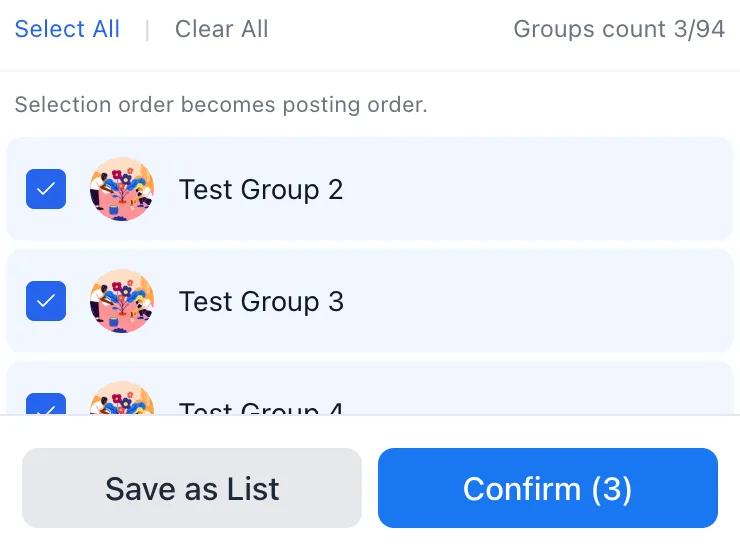
Selection order becomes posting order

Group Collections make the order of selected groups visible before you continue.

This matters when you want a predictable routine. For example, you may want to post first to your most relevant niche groups, then to broader community groups, then to secondary campaign groups.

Seeing the selected groups before confirming helps reduce mistakes like posting to the wrong audience or forgetting a group that belongs to the workflow.

Better control

Review exactly which groups are selected before continuing.

Fewer mistakes

Avoid rebuilding the same list from memory every time.

Clearer routine

Keep repeat campaigns organized by group order and group relevance.

Selected Facebook groups shown in order before confirming

Save selected groups as a reusable list

Save a group selection once and reuse it later for similar posting workflows.

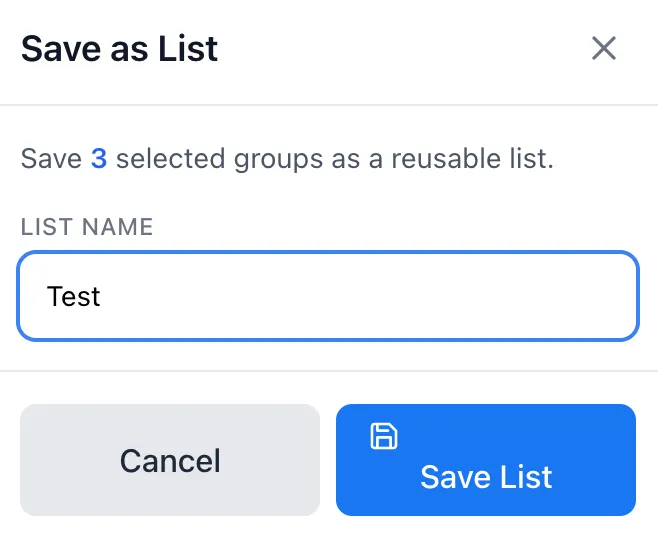
After selecting groups, you can save them as a named list. This is useful when you post around the same topic more than once: local events, real estate updates, recruiting posts, reseller campaigns, affiliate content, community announcements, or niche-specific promotions.

Good list names make future work easier. Instead of starting from zero, you can choose a saved collection and adjust it when needed.

  • Real Estate - Prague Rentals
  • Weekend Events - Local Communities
  • Recruiting - Java Developers
  • Reseller Groups - Electronics
  • Affiliate Campaign - Fitness Communities
Save as List modal for naming a reusable group collection

Why Group Collections help with repeated posting

Group Collections reduce repeated selection work and make Facebook group posting workflows easier to review.

Less setup every time

Save groups once and reuse the same target list later.

Cleaner campaign structure

Organize groups by topic, niche, audience, location, or campaign type.

Easier review

See selected groups before continuing instead of relying on memory.

Works with the full workflow

Use collections together with AI variations, scheduling, and smart posting controls.

Use Group Collections responsibly

Group Collections are for organizing relevant groups, not for sending irrelevant posts everywhere.

A saved group list should still be reviewed before each posting session. Groups change rules, topics shift, and what was relevant last month may not fit today. Use collections to stay organized, but keep human judgment in the workflow.

Do

  • organize groups by clear topic or audience
  • review the selected list before continuing
  • remove groups that no longer fit the campaign
  • follow each group's rules and posting culture

Do not

  • treat every saved list as always relevant
  • send the same message into unrelated communities
  • use collections to ignore group rules
  • claim guaranteed reach, approvals, or outcomes

How Group Collections fit into AI Groups Poster

Group Collections handle the "where to post" part of the workflow.

AI Groups Poster is built around a simple workflow: prepare the post, create variations, choose target groups, review the final messages, and continue with a more organized posting routine. Group Collections help with the targeting step, while the AI Post Rewriter helps with message variation.

Common questions about Group Collections

Do Group Collections publish posts automatically?

No. Group Collections help you organize and select target groups. You still control the content, selected groups, and workflow decisions.

Can I sync my Facebook groups?

Yes. The extension can open a temporary Facebook groups window and scan groups available to your account so they can appear in the selection modal.

Can I import Facebook group links manually?

Yes. You can paste Facebook group URLs one per line and add them to the current selection.

Does selection order matter?

Yes. The selected order becomes the posting order, so you can organize the workflow in a predictable sequence.

Can I save groups as reusable lists?

Yes. After selecting groups, you can save them as a named list and reuse that collection later.

Does AI Groups Poster join groups for me?

No. Group Collections are for organizing groups you provide or groups available to your account. They do not join new groups or bypass group permissions.

Organize target groups before every posting workflow

If you repeatedly post to similar Facebook groups, Group Collections help you keep your target lists clearer, easier to review, and faster to reuse.