
Quick answer
You can post to multiple Facebook groups at once only when Facebook shows the native Add groups option. If it is missing, use a manual posting workflow or a tool such as AI Groups Poster to prepare variations, organize group lists, schedule a posting session, and review before continuing.
Posting across several Facebook groups is easy when it happens once. It becomes harder when it becomes a weekly or daily routine. You need the right groups, the right version of the post, the right timing, and a way to remember what already went out.
This guide explains the native Facebook option, the manual method, scheduling, and where a Facebook group posting workflow tool can help without turning the process into careless bulk posting.
Contents
Can you post to multiple Facebook groups at once?
Sometimes. The native way is Facebook's Add groups option inside the group post composer. When it appears, you can start a post in one group and add more groups before publishing.
The catch is availability. Add groups may appear on one account and not another. It may work on desktop but not mobile. It can also depend on group settings, permissions, post type, account state, and interface changes.
If Facebook gives you Add groups, use it carefully. If it does not, do not force the workflow. Use manual posting or a user-controlled workflow tool that helps you prepare, organize, and review the process.
How the native Add groups option works
When Add groups is available, the flow is simple:
- Open the first Facebook group where the post belongs.
- Open the group post composer.
- Write the post, add the image, video, link, or event details.
- Look for Add groups or a similar group selection control.
- Select the additional Facebook groups where the post is relevant.
- Review the selected groups, post content, and media before publishing.
- Publish and return later to check comments, approvals, and admin feedback.
This works best when the groups are similar. If the groups are different, the same post may need a different opening, location detail, image, link treatment, or call to action.
Why Add groups may be missing
If you do not see Add groups, it does not always mean something is broken. Common reasons include:
- different controls on desktop, mobile web, iOS, and Android;
- group settings that restrict links, promotions, media, or Page posting;
- different permissions for admins, moderators, Pages, and members;
- post-type differences between text, images, videos, links, events, and marketplace-style posts;
- account state or recent posting issues.
Before looking for a Facebook group auto poster or Chrome extension, test the basics: try another device, update the app, confirm that you can post in each group, and read the rules. If the post does not fit the group, skip that group.
Manual method: post to groups one by one
Manual posting is still the most transparent fallback. It is slower, but it gives you direct review before every post.
A clean manual workflow looks like this:
- Create a group list with the group name, URL, topic, rule notes, and posting status.
- Write one clear base draft outside Facebook.
- Create a few post variations for different audiences.
- Open the first group and check the latest pinned rules or admin notes.
- Paste the relevant version, attach media, and review the post.
- Mark the group as posted, pending approval, skipped, or needs follow-up.
- Repeat for the next relevant group.
This works for occasional campaigns. It becomes frustrating when you post to many groups every week because copy-paste fatigue creates mistakes: wrong links, wrong groups, missing media, repeated wording, and missed comments.
How long does manual Facebook group posting take?
The time depends on how carefully you review each group. These are practical planning ranges, not promises.
| Number of groups | Manual workflow estimate | What usually slows it down |
|---|---|---|
| 5 groups | 10-20 minutes | Checking rules, adjusting the first line, confirming the right media |
| 20 groups | 40-90 minutes | Copy-paste fatigue, tracking where you already posted, small edits per group |
| 50 groups | 2+ hours if reviewed carefully | Different group rules, approval queues, post variations, follow-up planning |
The goal is not raw speed. The goal is fewer mistakes and more relevant posts.
Can you schedule posts to multiple Facebook groups?
Facebook scheduling depends on the group, role, interface, and composer controls. Some users see native scheduling in some contexts. Others do not.
Scheduling also does not solve the whole workflow. Before a scheduled post goes live, you still need to know:
- Which groups are included in this campaign?
- Does the post fit each group's topic and rules?
- Which post variation should each group receive?
- What time should the workflow start?
- How should posts be paced?
- Who will check comments, approvals, and follow-up tasks afterward?
A Facebook group post scheduler is most useful when it connects to group lists, post variations, review, and posting controls.
When a Facebook group posting tool helps
A Facebook group posting tool helps when the task is repetitive but still needs judgment: selected groups, prepared variations, planned schedule, and review before posting.
For serious recurring workflows, look for a tool that supports:
- Post variations: multiple versions of a draft so every group does not receive identical wording.
- Group collections: reusable lists for locations, campaigns, industries, audiences, or topics.
- Scheduling: planned posting workflows instead of last-minute copy-paste sessions.
- Posting controls: intervals, review steps, and workflow pacing.
- Transparency: clear permissions, security explanations, and responsible-use guidelines.
Be careful with tools that frame Facebook group bulk posting as a way to bypass rules, hide automation, guarantee reach, or avoid account consequences. A better tool should make the workflow clearer, not encourage careless posting.
A cleaner workflow with AI Groups Poster
AI Groups Poster is designed for user-controlled Facebook group posting workflows. It helps you prepare better drafts, organize selected groups, schedule planned routines, and use posting controls responsibly.
- Prepare the draft. Start with one clear post that says what you need to say.
- Create variations. Use the AI Post Rewriter to prepare editable versions for different audiences.
- Organize groups. Use Group Collections to keep relevant Facebook groups together by campaign, location, topic, or audience.
- Review before posting. Check the content, group selection, timing, media, and rules before continuing.
- Schedule when useful. Use Schedule Posting for planned one-time or recurring workflows.
- Control the pace. Use Smart Posting Controls to keep the workflow structured instead of rushed.
- Follow up. Return to comments, approvals, and group responses after the post is live.
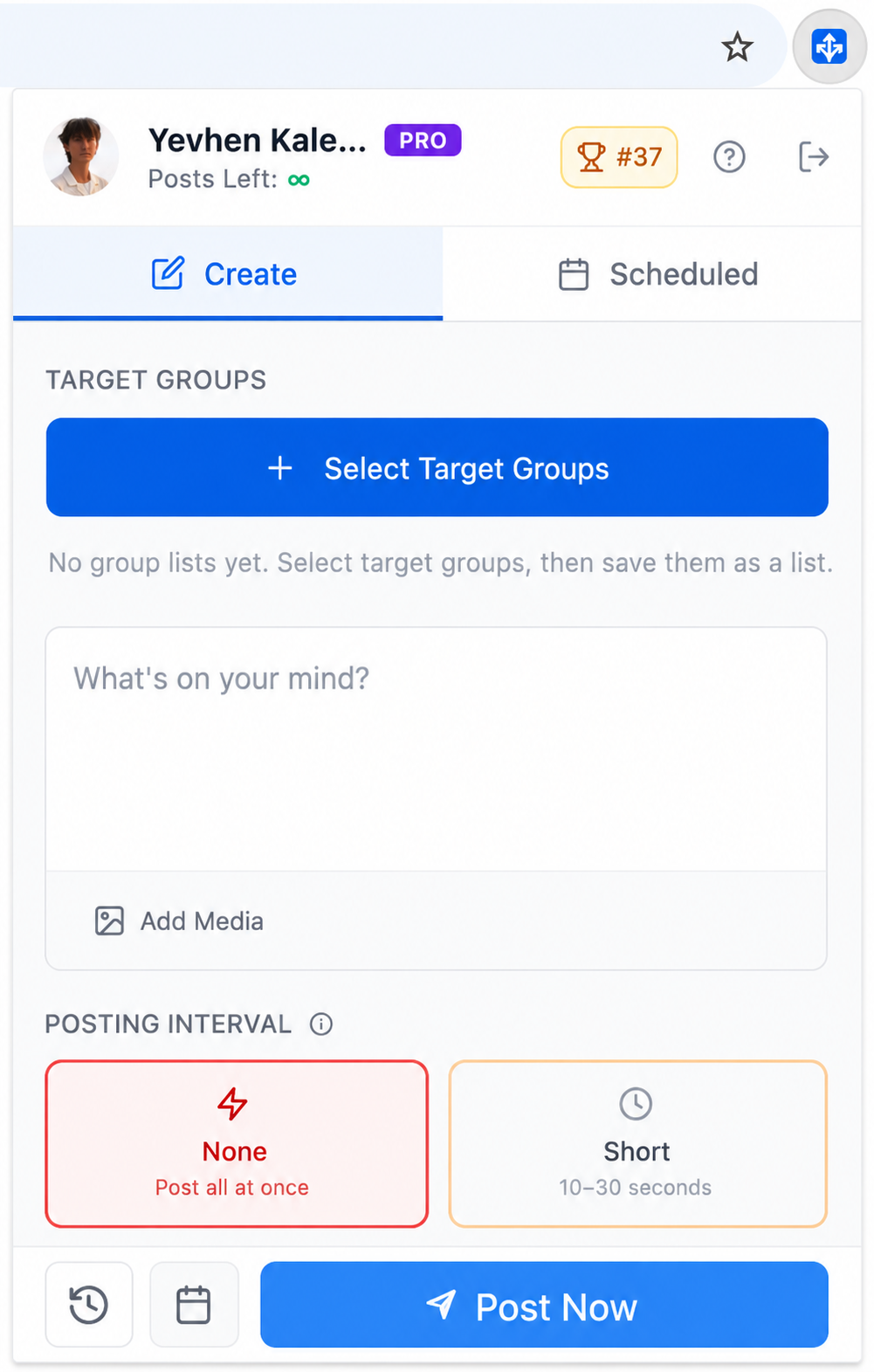
AI Groups Poster does not promise reach, approvals, leads, engagement, or account outcomes. It is a workflow tool for preparation, organization, review, scheduling, and posting controls.
Native posting vs manual posting vs AI Groups Poster
| Method | Best for | Main advantage | Main limitation |
|---|---|---|---|
| Facebook Add groups | Small sets of similar groups when Facebook shows the option | Native Facebook composer flow | Not available for every account, device, group, or post type |
| Manual posting | Occasional campaigns or careful one-by-one review | Maximum direct control before every post | Slow, repetitive, and difficult to track as group count grows |
| AI Groups Poster workflow | Recurring Facebook group posting with variations, group lists, scheduling, and pacing controls | Cleaner preparation, organization, review, and scheduling | Still requires judgment, relevant groups, and respect for rules |
Before you post to several groups
- Choose groups that are actually relevant to the post.
- Read the rules for promotions, links, images, frequency, location, and approval requirements.
- Adjust the opening, context, example, or call to action for each audience.
- Use post variations instead of repeating the exact same text everywhere.
- Review AI-generated text before using it.
- Avoid exaggerated claims, misleading offers, and off-topic posts.
- Track where you posted, which groups are pending approval, and where follow-up is needed.
- Respond to comments after publishing.
Common questions
Can you post to multiple Facebook groups at once?
Sometimes. Facebook may show an Add groups option in the group post composer. If that option is not available, the practical fallback is to post manually one group at a time or use a workflow tool that helps prepare variations, organize groups, schedule posting sessions, and review before continuing.
Why is the Add groups option missing on Facebook?
The Add groups option can vary by account, interface, app version, post type, group role, permissions, and group settings. Missing Add groups does not always mean something is broken; it may simply not be available for that situation.
What is the safest way to post in several Facebook groups?
The safest workflow is to choose relevant groups, read group rules, adapt the post for each audience, review before publishing, avoid irrelevant repetition, and follow up on comments. No tool can guarantee reach, approvals, or account outcomes.
Can AI Groups Poster schedule Facebook group posts?
AI Groups Poster includes Schedule Posting for planned workflows. Users should still review the content, selected groups, timing, and group rules before using scheduled posting.
Is AI Groups Poster a Facebook group bulk poster?
AI Groups Poster can support repeated Facebook group posting workflows, but it is positioned as a user-controlled workflow tool rather than a shortcut around rules. The product focuses on post variations, group collections, scheduling, review, and posting controls.
Should I post the same message to every group?
Usually no. Different Facebook groups have different audiences, rules, and expectations. A better workflow is to start with one base draft, create several reviewed variations, and use only the groups where the post is relevant.
Editorial note
This guide is written for people who want a cleaner Facebook group posting workflow, not a way to ignore group rules. AI Groups Poster is built around preparation, organization, review, scheduling, and responsible posting controls.
Final thoughts
The best way to post to multiple Facebook groups at once is to use Add groups when Facebook shows it and when the post genuinely fits every selected group.
When that option is missing, a careful manual workflow works. If group posting is part of your regular routine, AI Groups Poster can help you turn that routine into a clearer system: selected groups, reviewed variations, planned timing, responsible pacing, and follow-up.